moomoo gives free Level 2 depth on US stocks, and it is one of the few brokers where you can get ten levels of the order book without paying for a data subscription. This guide connects moomoo to TraderWe through OpenD, the local gateway moomoo ships for API access, and shows what to check when it does not work.
Everything here was done on a real installation. The two screenshots are from that session, with the account number blanked out.
1. What you need before starting
You need three things: a moomoo account, the OpenD gateway running on the same machine as TraderWe, and quote permissions on the market you want.
OpenD is not optional and it is not a setting inside TraderWe. It is a separate program from moomoo that speaks to their servers and exposes a local port. TraderWe talks to that port. If OpenD is closed, TraderWe cannot reach moomoo at all, and the most common setup failure is simply that OpenD was not running.
Download it from moomoo's developer site and sign in with the same account you use in the moomoo app.
2. Check OpenD before touching TraderWe
Open OpenD and look at four things on its main screen.
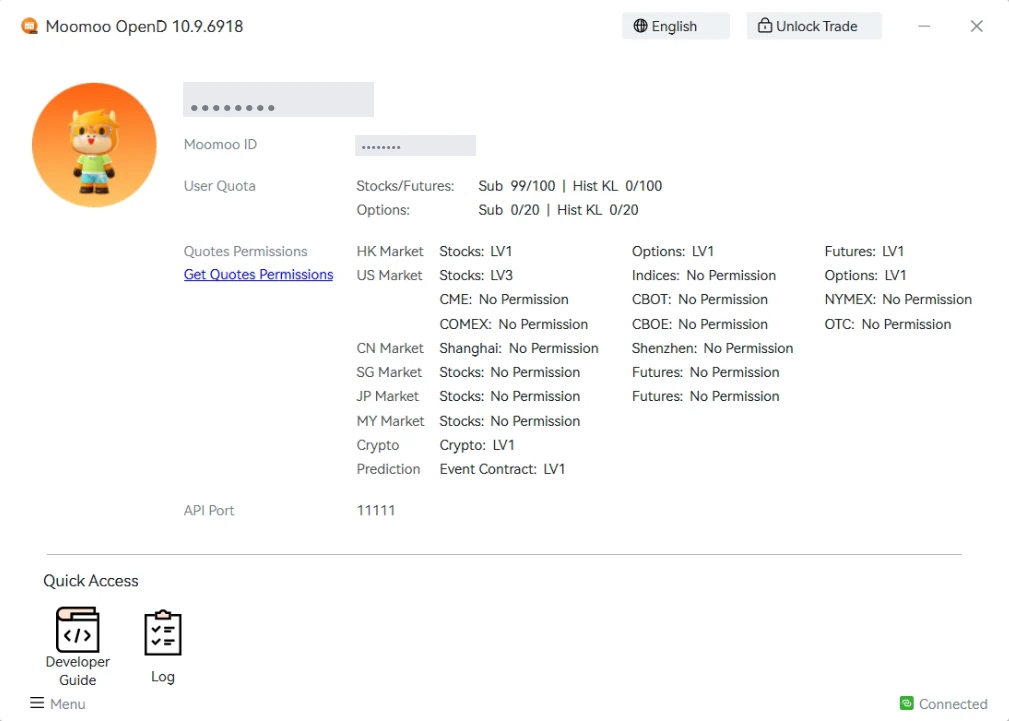
moomoo OpenD showing API port 11111, quote permissions and the subscription quotaAPI Port is the port TraderWe will connect to. The default is 11111. If you changed it, remember the number.
Connected in the bottom right. If it says anything else, fix that first, nothing downstream will work.
Quotes Permissions tells you what depth you actually have. In the screenshot, US Market · Stocks: LV3 is the line that matters: that is full depth on US stocks. LV1 would be top of book only, and you would get one bid and one ask instead of ten levels. Permissions differ by market and by account, so check this line rather than assuming.
User Quota shows Stocks/Futures: Sub 99/100. That is the subscription budget, and it is the constraint most people hit later rather than during setup. You get 100 symbol subscriptions. A scanner watching a large universe will exhaust that quota, and moomoo will refuse new subscriptions rather than silently dropping old ones.
There is also an Unlock Trade button at the top. You do not need it for market data. You need it for live orders, and TraderWe can do that unlock for you — see step 5.
3. Connect from TraderWe
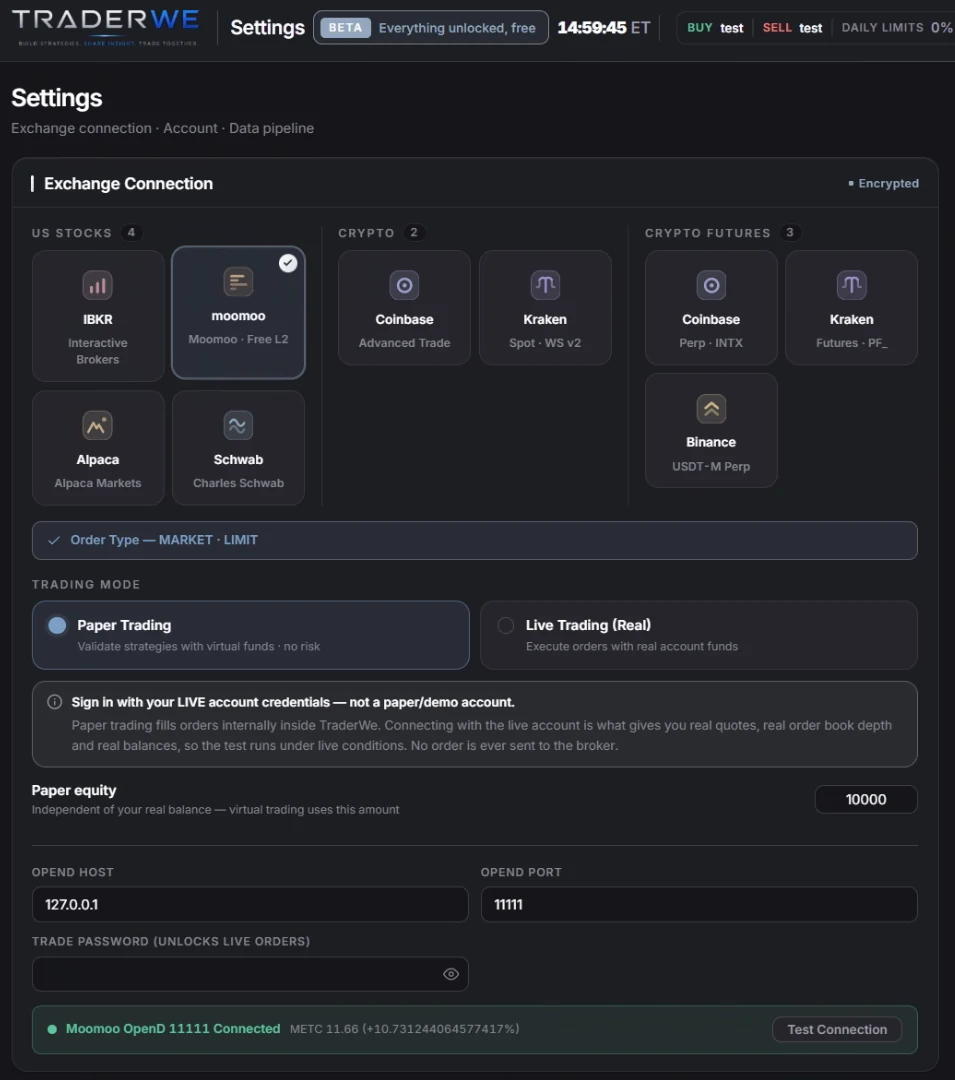
Open Settings, then Exchange Connection, and pick moomoo under US Stocks.
TraderWe settings with moomoo selected, OpenD host and port filled in, and a connected status lineOpenD Host is 127.0.0.1 when OpenD runs on the same machine, which is the normal case. Use the other machine's address only if you deliberately run OpenD elsewhere on your network.
OpenD Port is the number from OpenD's main screen — 11111 unless you changed it.
Press Test Connection. A working connection shows a green line like Moomoo OpenD 11111 Connected with a live quote next to it. That quote is the real check: a port that accepts a connection but returns no data will still look "connected" in a naive test, so we show a symbol and its price instead.
4. Paper trading uses your live login
This part surprises people, so it is worth being explicit.
TraderWe's Paper Trading mode signs in with your live account credentials, not a broker demo account. Orders are never sent to moomoo. They fill inside TraderWe against a virtual balance you set yourself.
The reason is that a broker's demo environment does not behave like the real one. Demo feeds are often delayed, depth is frequently synthetic, and fills are generous in ways the live venue is not. Testing against that teaches you the demo environment. Signing in live gives you real quotes, real order book depth and real balances, and the test runs under the conditions you will actually trade in — with no order ever leaving the application.
Set Paper equity to whatever size you want to test at. It is independent of your real balance.
5. Live orders need the trade password
If you switch Trading Mode to Live Trading (Real), fill in Trade Password. moomoo locks trading on a fresh session and requires an unlock before it will accept orders. TraderWe performs that unlock for you when the field is set.
Leave it empty while you are in paper mode. Nothing needs it there.
6. What to check when it does not work
"Connection refused" or nothing happens. OpenD is not running, or the port does not match. Check OpenD's main screen for the API Port number and that the bottom right says Connected.
Connects, but no quotes arrive. Look at Quotes Permissions in OpenD. A market with No Permission returns nothing, and an account with LV1 returns top of book only. This is an account entitlement, not a TraderWe setting.
Quotes arrive, then stop after you add symbols. You have hit the subscription quota. OpenD shows it as Sub n/100. Reduce the watchlist or the scanner universe.
Depth is thinner than expected. Ten levels of order book have a lower concurrent limit than plain quotes. Watching a wide universe and expecting full depth on every name at once will not work — the practical pattern is a broad list for scanning and a narrow list for depth.
OpenD with RSA encryption enabled. Not supported. Run OpenD without the RSA key option.
Market orders rejected on a moomoo paper account. moomoo's own simulated environment does not accept market orders on US stocks. This does not affect TraderWe's paper mode, which fills internally, but it does affect you if you point TraderWe at a moomoo simulated account in live mode. Use limit orders there.
7. What you get once it is connected
The universe panel shows a bid/ask ratio bar per symbol, computed from the depth moomoo sends. In strategy code the ten levels are available as Ask1 through Ask10, Bid1 through Bid10, AskSize1 through AskSize10, plus TotalAskSize, TotalBidSize and AskLevels, so a spread guard or a depth filter is a single condition rather than an approximation.
TraderWe can also read your moomoo watchlist groups directly, so a list you curate in the moomoo app can drive the universe without retyping it.
Limitations
- Written from one installation on 2026-08-14. moomoo changes entitlements and quotas without notice — the numbers on your OpenD screen are the authority, not this page.
- Quote permission levels differ by account and by region. LV3 on US stocks is what this account had; yours may differ.
- The subscription quota (100) and the tighter concurrent limit on full order book are moomoo's, not TraderWe's. We surface them but cannot raise them.
- Nothing here is a recommendation of moomoo over another broker. It is a setup procedure for the broker you chose.
Originally published by TraderWe on July 30, 2026. You may quote and link to this page. Republishing the full text without a link back to the original is not permitted.
Morning all! Made my coffee and did this one before the open — the bit about OpenD being a totally separate program is the thing I wish someone had told me first, I kept hunting for a toggle in settings that doesn't exist. Nice to see screenshots from an actual install too instead of stock images.
depth on US names for free is neat but does the gateway have to stay open all session or can it sleep? my machine idles a lot while I'm watching perps and I don't want it dying halfway through.
Good writeup, one thing I'd add to the checklist: OpenD dying mid-session is silent. Depth just stops updating and it looks like a quiet book, not a broken feed. I check the connection status before every entry, same as I check my stop is actually resting. And a gentle warning for beginners. Seeing ten levels does not mean the size is real, I've watched plenty of it vanish the second I reached for it. Don't let a fat-looking bid talk you into a bigger position than your plan allows.
Yes, OpenD must stay running the whole time — if it closes or the machine sleeps, the connection drops and you'll need to restart it. Also worth noting the guide doesn't cover the subscription quota in depth: there's a cap on how many symbols you can have subscribed at once, so if depth stops updating on a new ticker that's usually why, not a bug on our side. If you hit something the guide doesn't explain, post the OpenD screen with the account blanked and we'll take a look.