If you want a trading bot running at 09:30 whether or not your computer is, you have two ways to get there. You can hand your broker key to a cloud bot service, or you can rent a Windows machine for the price of a couple of coffees and run your own software on it.
This guide covers the second one end to end: what to rent, how to set it up, how to keep it running, and the mistakes that cost people a session.
The important part is what does not change. On a VPS your broker API key still lives on a machine only you can log into, your strategies are still files you own, and your backtest still replays the feed your own broker sent. You moved the computer, not the trust. We wrote about that trade-off in where your trading bot should run.
1. How the pieces connect
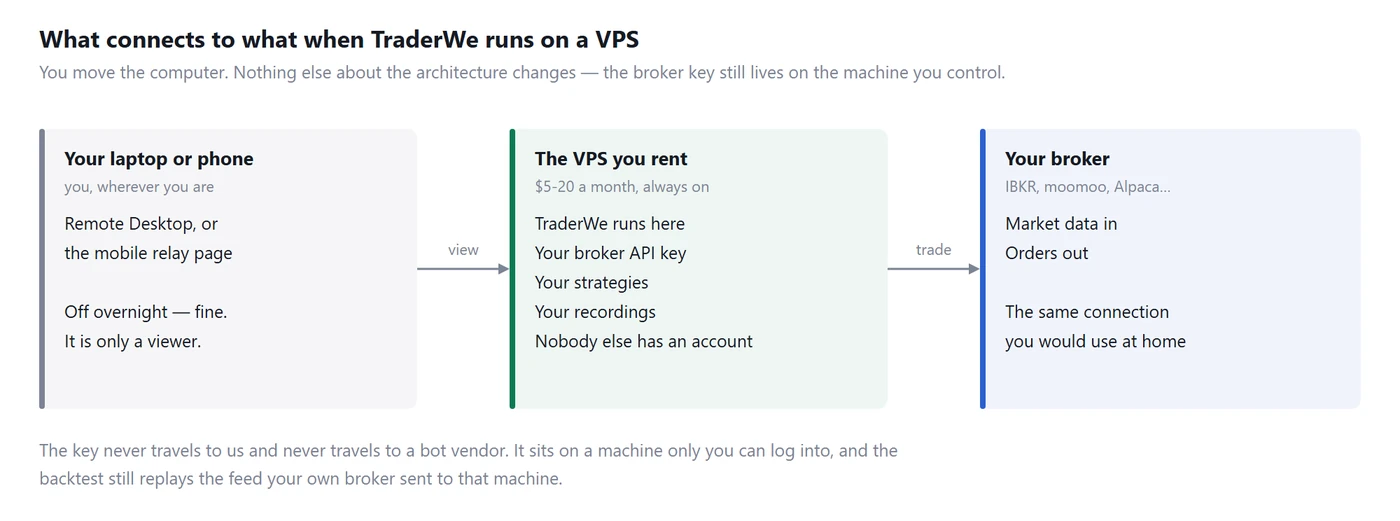
How a TraderWe VPS setup is wired: your laptop views it, the VPS runs it, your broker feeds it
Three machines, and only one of them matters.
The VPS runs TraderWe. It holds the broker key, the strategies and the recordings, and it keeps the connection to your broker open all session.
Your laptop or phone is a viewer. You connect with Remote Desktop when you want to change something, and you close it again. Turning your laptop off does not stop anything, because nothing is running on it.
Your broker sees a perfectly ordinary connection from a Windows machine. It does not know or care that the machine is in a data centre.
2. What to rent
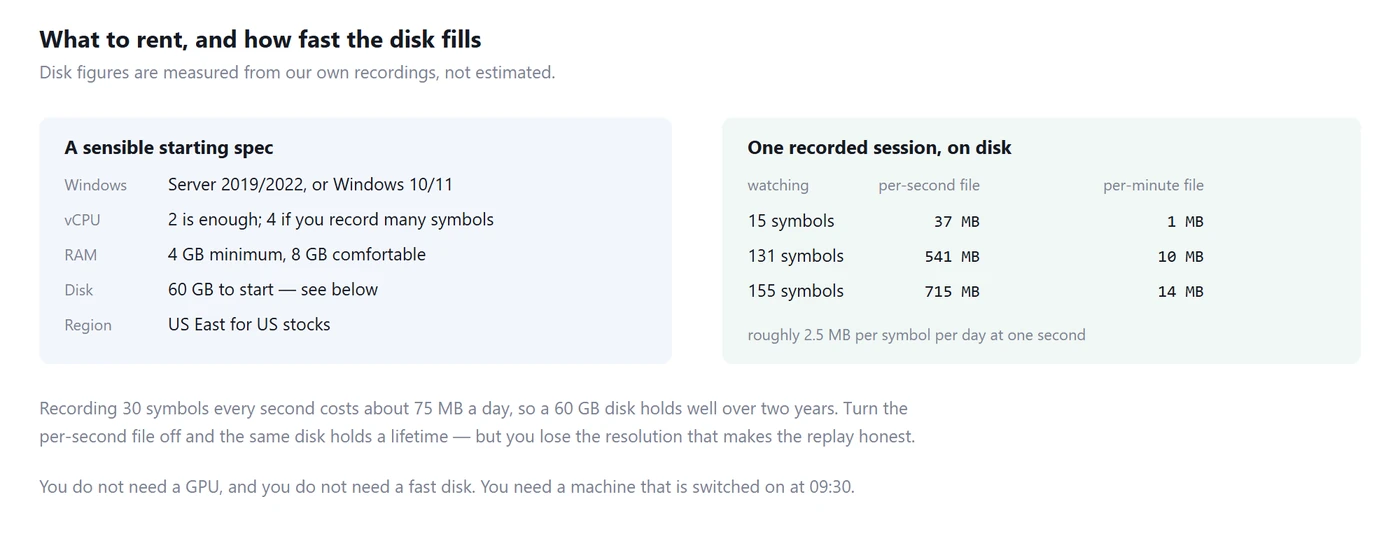
A sensible starting spec, and how much disk one recorded session actually uses
TraderWe is a Windows desktop application built on .NET 8, so you need a Windows VPS with a real desktop session — not a Linux box, and not a container.
Recommendation
Operating system
Windows Server 2019 or 2022, or Windows 10/11
vCPU
2 is enough for most setups, 4 if you record many symbols
RAM
4 GB minimum, 8 GB comfortable
Disk
60 GB to start
Region
Close to your broker — US East for US equities
Price
Typically $5 to $20 a month at this spec
You do not need a GPU. You do not need NVMe. You need a machine that is switched on at 09:30 and has a stable network.
On the region. Physical distance is latency, and putting the machine near your broker's servers shaves the round trip. Do not over-think it: for strategies holding seconds to minutes, the difference between a data centre in Virginia and one in Frankfurt matters, and the difference between two data centres in Virginia does not. If your edge needs single-digit milliseconds, a general-purpose VPS is not the right tool anyway.
On disk. These are measured from our own archive rather than estimated. One recorded session watching 15 symbols takes about 37 MB at one second and 1 MB at one minute. Watching 131 symbols takes 541 MB and 10 MB. That works out at roughly 2.5 MB per symbol per day for per-second data.
At 30 symbols you are writing about 75 MB a day, so a 60 GB disk holds more than two years of sessions. If you turn per-second recording off you can run on almost nothing, but you give up the resolution that makes a replay worth doing.
3. Setting it up
Create the server. Any provider with Windows images works. Choose the spec above, pick a region near your broker, and note the administrator password the provider gives you.
Connect with Remote Desktop. On Windows, open Remote Desktop Connection and enter the server's IP address. On a Mac, use Microsoft Remote Desktop from the App Store. You will get a normal Windows desktop in a window.
Do the Windows setup once. Run Windows Update to completion before you install anything, so it is not waiting to interrupt you later. Set the time zone. This does not affect recording, because sessions are stamped in Eastern time regardless, but it makes the logs easier to read.
Install TraderWe. Download the installer inside the VPS and run it. Setup is the same as on any PC.
Activate the licence. This is the step people trip over. A licence activates on one PC by default, so if the app is already activated on your home machine, the VPS will report that the key is already in use. Go to your account page on our site and use Release all activated PCs, then enter your key on the VPS. Your home machine will ask for the key again next time you open it, which is expected.
Connect your broker. Exactly as you would at home. Our per-broker guides cover the specifics: IBKR, moomoo, Alpaca, Schwab. If your broker requires a local gateway, install it on the VPS too. It needs to be on the same machine as the app.
Set the universe and start recording. From here everything works as it does on a desktop. The US stock backtest walkthrough covers universe settings and what to check in your first recording.
4. Making it survive a reboot
A VPS that reboots at 04:00 and comes back to a login screen is a VPS that missed the open. Three settings prevent that.
Enable automatic logon. A Windows desktop app needs a logged-in desktop session. Without automatic logon, a reboot leaves the machine sitting at the lock screen with nothing running. Search for netplwiz, clear the checkbox requiring a password, and enter your credentials once. Treat this as a real decision: it means anyone with console access to that machine is already logged in as you, which is exactly why the VPS should have a strong administrator password and nothing else installed on it.
Start TraderWe on logon. Put a shortcut in the startup folder — press Windows+R, type shell:startup, and drop a shortcut to the app there.
Control when Windows restarts. Set active hours to cover the session so updates cannot reboot mid-trade. On Windows Server, configure the maintenance window instead. Do not disable updates entirely; a machine holding your broker credentials should be patched.
Do not disconnect the wrong way. Closing the Remote Desktop window leaves your session running, which is what you want. Choosing Sign out ends the session and stops the app. Close the window, do not sign out.
5. Watching it from your phone
Running unattended only helps if you find out when it stops.
TraderWe keeps an outbound connection to our relay, and your phone gets a push notification for the events that matter: the engine starting or stopping, a loss or profit limit being hit, a broker connection dropping, a position being liquidated.
Machine death is handled separately, because a machine that has died cannot report it. If the connection from the VPS goes silent and does not return within 90 seconds, our server sends the alert instead. The absence of a heartbeat is the signal.
That does not restart anything for you. It means you know within a minute and a half, from wherever you are, rather than discovering it after the close.
6. What it costs, honestly
At $5 to $20 a month you are paying roughly $60 to $240 a year for uptime you would otherwise get by leaving a PC on. A PC left on all day draws real power too, so for many people this is closer to a wash than it looks.
What you get for it is a machine that does not sleep, does not get closed by accident, does not lose Wi-Fi, and does not restart because someone in the house tripped a breaker.
What you do not get is co-location, professional network hardware, or redundancy. A VPS can fail, and providers do have outages. If your strategy cannot tolerate an unexpected stop, the answer is exits that fail safe — a hard time exit and a session close-out in every strategy, not a more expensive server.
7. Common problems
"This key is already in use on another PC." The licence is activated somewhere else. Release the seats from your account page, then activate on the VPS.
The app is not running after a reboot. Automatic logon is off, so there is no desktop session for it to run in. Section 4 covers it.
Everything stopped overnight and Windows looks freshly restarted. An update rebooted the machine. Set active hours.
The broker gateway is not connecting. If your broker needs a local gateway, it has to be installed on the VPS, not on your home PC. The app talks to it over localhost.
Recording is running but no data arrives. Almost always the universe scanner has nothing to select — check the change floor and price band before suspecting the server.
The disk filled up. Per-second recordings accumulate. Move old files off, or record at one minute for symbols you are not actively researching.
8. Should you do this at all
Yes, if you already have a strategy you trust, you want it running while you sleep or work, and you are not willing to give a third party permission to trade your account.
Not yet, if you are still developing. Development is faster on your own machine, and there is no benefit to paying for uptime you are not using. Build it locally, prove it, then move it.
Probably not, if latency is your edge. A general-purpose VPS is closer to the exchange than your house and much further than a professional setup. Being in the middle is not an advantage.
The pattern most people end up with is simple: research on the desktop, run on the VPS, watch from the phone.
Originally published by TraderWe on August 11, 2026. You may quote and link to this page. Republishing the full text without a link back to the original is not permitted.
The framing of 'you moved the computer, not the trust' is the bit I'll be repeating to people. My only open question is the boring one: when the VPS provider reboots the host for maintenance overnight, does the app come back up on its own or do I log in at 9:15 to find nothing running? That's the part that would actually cost me a session, not the setup.
"You moved the computer, not the trust" is a good line, but let's be honest, the thing most people actually need to move is the strategy. A bot that loses at 3pm on your laptop will lose at 3pm in a data centre, just more reliably. Genuine question though: does the guide cover what happens when Windows decides to reboot for updates mid-session? That's eaten more of my automations than any indicator ever did.
Nice writeup, though half the appeal of swing trading is that I genuinely do not care if my laptop is asleep at the open. Still might rent one just so I stop babysitting the thing on holiday.
@LurkerLee purely a viewer - closing RDP disconnects your screen, not the app or the broker connection. @FiveMinFiona reboots are the real gap here; the guide should be clearer that auto-start after restart is something you have to set up yourself, it isn't automatic. We'll look at expanding that section.